Find Grid
The Find Grid is a screen that displays your record in a spreadsheet. Here, you can display fields, sort information, filter data, and make changes to records. Common uses of the Find Grid include:
-
Getting quick counts and lists
-
Examining how codes have been used
-
Entering new information
Access the Find Grid

To access from the Button Bar, go to People > Find.
To access from a record in People, go to  and select a simple (one field) query or a detailed (multi field) query.
Queries
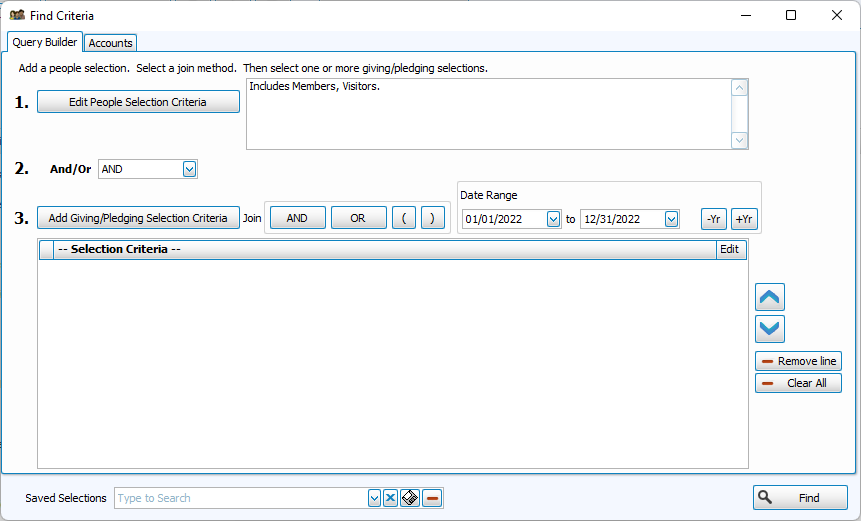
The records displayed in the Find Grid are selected with Find Criteria. This function uses the same query builder as Reports. The default query will provide all records, in all categories that have not been marked as Inactive. To view all active records click  . Enter more specific criteria from Membership with
  or from Donations with
  , or use the Accounts tab to filter results to those who have participated in campaign or given to selected Giving Accounts. Once the grid produces the list of people matching your criteria, the total count of individuals will appear on the Find Grid window's title bar
  .
.
Note: The Find Grid displays only Membership records. Donations Individuals and Groups are not included in these results.
If your query only matches a single person, the program will bring up their individual record. However, most queries are going to have many people that fit the criteria, and they will be displayed in a dynamic spreadsheet called the Grid. Entries and changes made here are saved to each record so you can make many changes and updates efficiently without searching for people individually.
Grid Controls
To make edits to records, click in the row and column and make changes within the cell. Changes are saved and applied to record as you move to the next cell.
Use vertical scroll bar on the right to move up and down in the Grid. Use the horizontal scroll bar on the bottom to move left and right.

Columns & Sorting
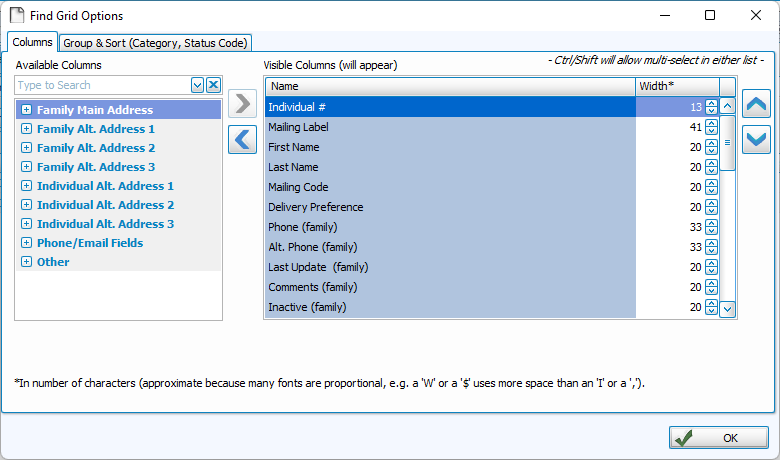
Columns and Sorting pulls up the Column Selector, which allows you to select what fields you want to show as columns on the Find Grid. You can also use the Group & Sort tab to set up your Grid Layout.
Print Grid
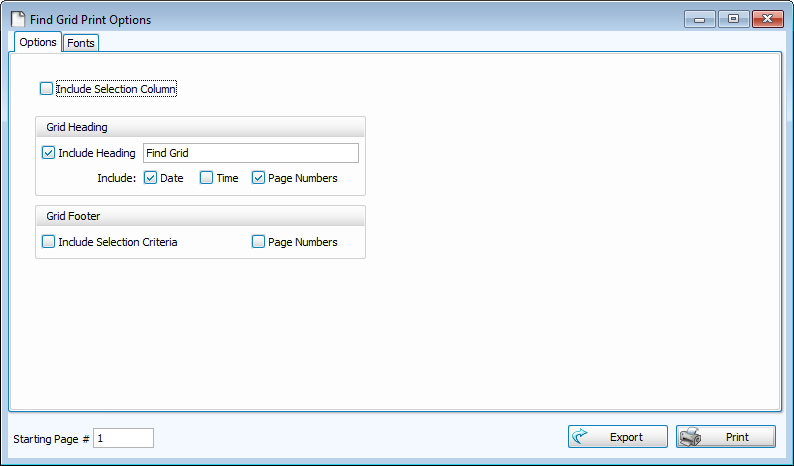
Print Grid converts the spreadsheet to a printer friendly version.
Go To Record
Checking a name in the Selection column in the Grid allows you to jump back and forth between a record in People and the Grid.
New Search
This button produces the initial Find Criteria screen for a new query.
Reports
This drop down allows you to take the records selected in the Find Grid and bring those people over to a work flow for Reports, Labels, or to Send Email.
Assign
The Assign function brings the people selected in the grid to the window for Group Assignment or Skill Assignment.
Mass Edit
Mass Edit allows you to change many records at once.

Restore Default
This button resets the Find Grid back to the system default layout.
Restore Saved
This button resets the Find Grid to the columns and sort settings that were most recently used.
Expand & Collapse
These buttons allow you to open or close grouped rows of data.
Search in Grid
This allows you to search the Grid for a key word or phrase.
Refresh
The Refresh button re-gathers all of the information in the records and displays it according to the group, sort, and criteria entered originally. You might use this after you've made edits and want to see that applied.
Grid Layout
-
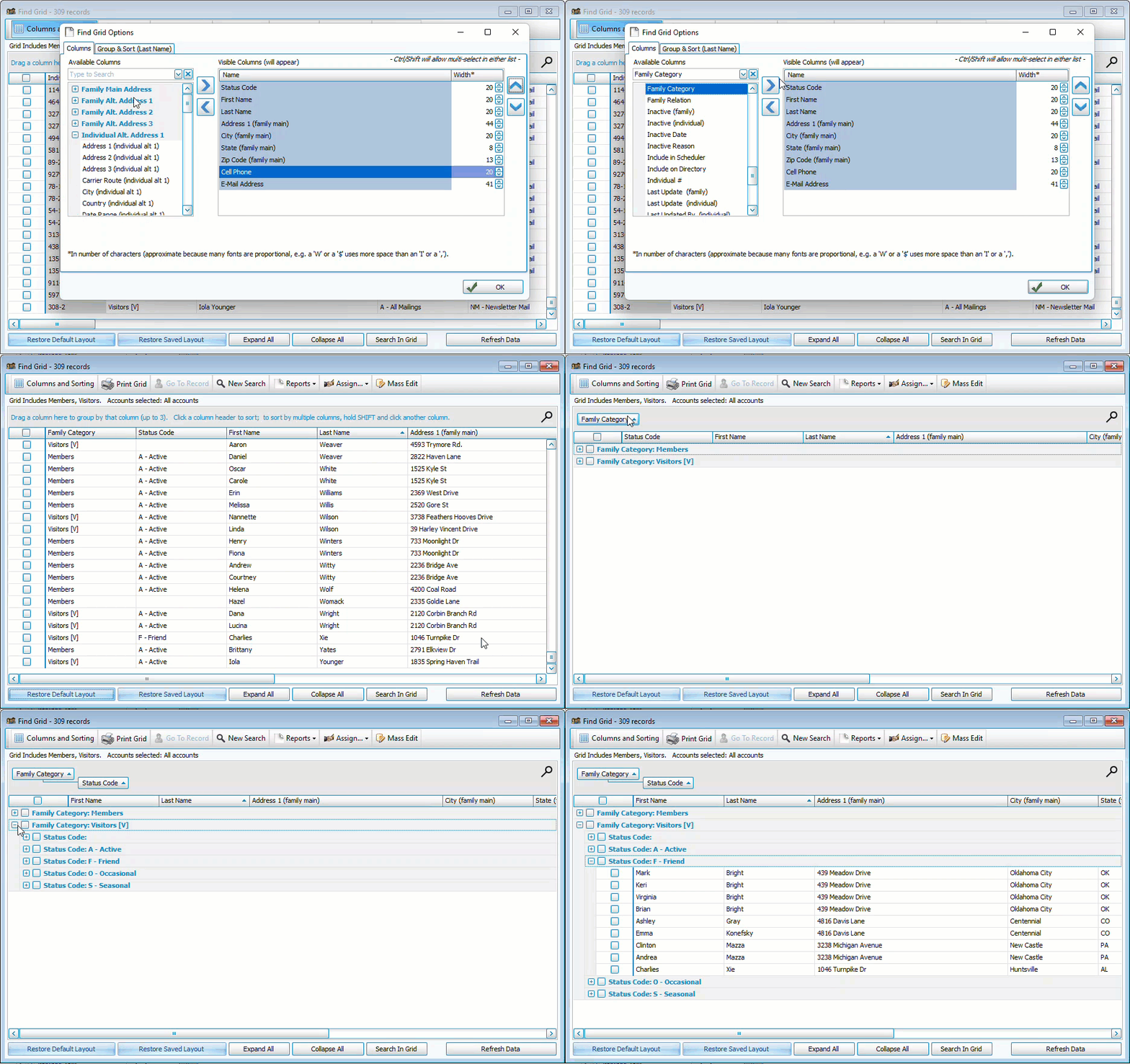
The Grid can be arranged either from the Find Grid by dragging and dropping or in the Group & Sort tab on the Column Selector.
-
Click on a Column heading to sort by that field alphanumerically. Click it again to reverse the sort.
-
Group fields by dragging a column heading up to the gray area above the spreadsheet. You can create grouped hierarchies with up to three fields.
Selecting People with the Grid
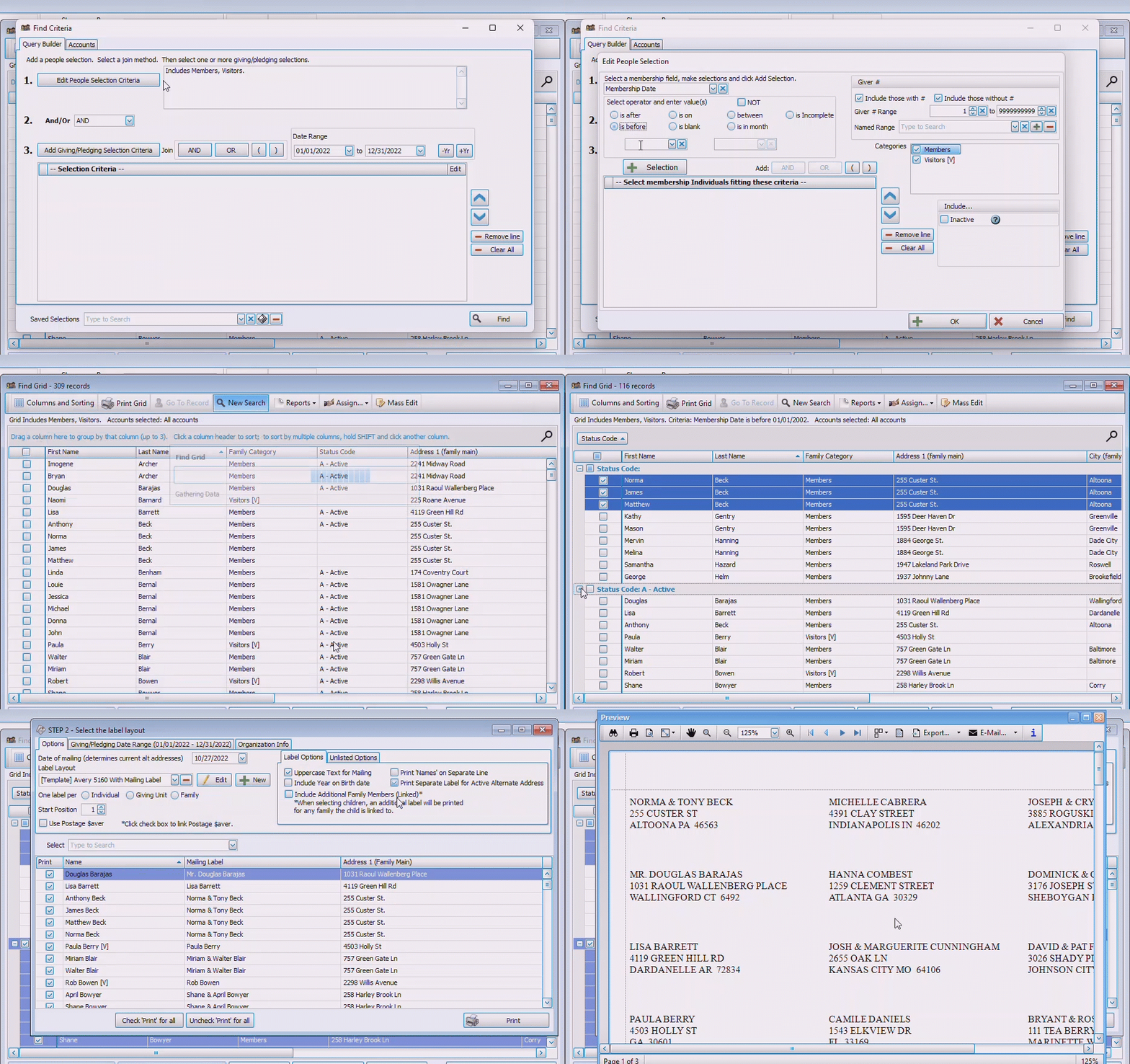
Once you have selected the individuals you want to include in Reports, Labels, or to Send Email, you'll be brought into the Step 2 - Layout or to the a window to compose a message.